 Sign in Next

 Български
 Čeština
 Dansk
Dansk
 Deutsch
 Eesti
Eesti
 Ελληνικά
 Español
 Français
 Hrvatski
 Italiano
 Latviešu
 Lietuvių
 Magyar
 Nederlands
 Norsk
Norsk
 Polski
 Português
 Română
 Slovenčina
 Slovenščina
 Српски (Ћирилица)
 Suomi
Suomi
 Svenska
 Türkçe
 Русский
 Українська
Importing a substance from the ECHA database
In this chapter, you will learn how to search for and add substances from the ECHA CHEM database to your database in SBLCore.
How the substance database works in SBLCore
In the software, you work with two substance databases:
- Database in the software (user database) - it contains the default substances, and you also save substances you create in it.
- ECHA CHEM database – an extensive European database of chemical substances.
The database in the software contains approximately 8,000 substances. These are mainly substances that have a harmonised (binding) classification or established exposure limits. To ensure that you are not limited to this selection, the software is connected to the substance database of ECHA (European Chemicals Agency). This gives you instant access to more than 150,000 substances, which you can easily import.
To avoid unwanted duplicates in the database, when you use the Search substance function, the software first searches the default database. Only if it does not find the substance there does it search for it in ECHA CHEM.
Only in rare cases will you be unable to find a substance in either database. In such a case, you can create it yourself. On the Substances tab, click the New substance button. Continue according to the chapter Adding your own substances to the database.
How to search for a substance on ECHA
-
Open the Substances tab.
-
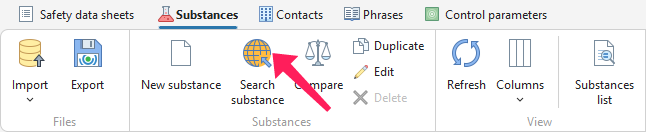
On the control bar, click the Search substance button.
-
When you use the function for the first time, an information window containing a legal notice will appear, which you must accept. This window is displayed once a day.
-
After confirmation, a new window with a search field will appear.
-
Enter the CAS, ES, Index number or substance name and click Search.
Tip! We recommend searching using numerical identifiers (CAS, ES, Index). Primary names are often in English, and names in other languages may differ or have multiple variants.
Search results
When using the Search substance function, the software first searches the default database. Only if it does not find the substance there does it search for it in ECHA CHEM.
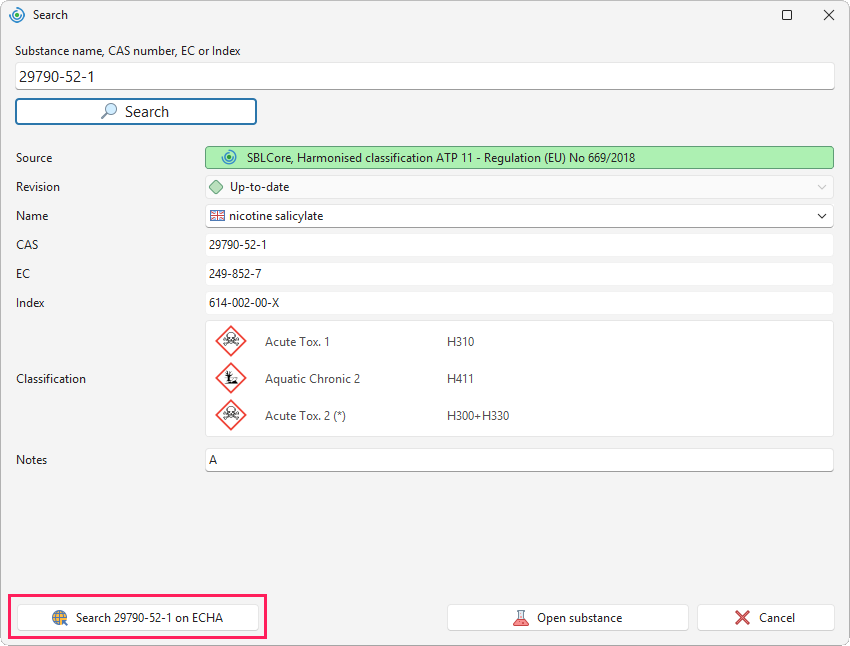
If the software finds the substance in the default database, the substance with SBLCore as the source is displayed below the search field in a green box.
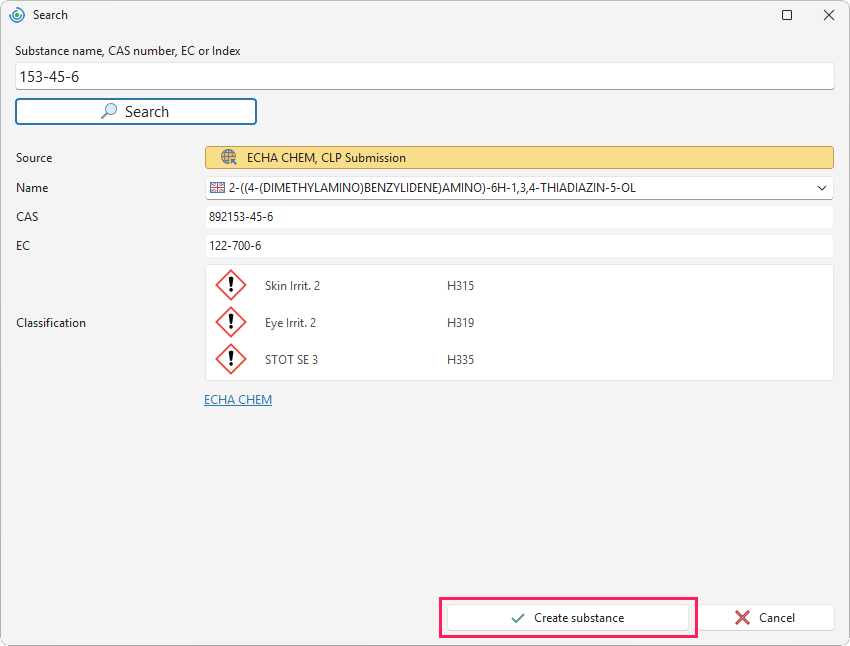
If the software does not find the substance in the default database, the substance with ECHA CHEM as the source is displayed in an orange box.
The search works as follows, depending on whether or not the substance is found in the user database:
The substance is found in the software database
The software displays either one matching substance with a classification or a list of available substance variants.
a) The software displays one substance with one classification
Clicking the Open substance button in the bottom-right part of the window opens the substance editing tab.
Tip! If the substance suits your needs in this form without a source, you can close the window and use the substance as it is.
If you do not want to use the substance from the database, you can continue searching for it in the ECHA database. In the left part of the window, click the Search on ECHA button.
b) The software displays a list of available variants (different sources or classifications)
The list of available variants is displayed when the software finds multiple records in the database that match your search. These may include previously created duplicates, different variants, or a substance that has multiple classification versions based on their validity.
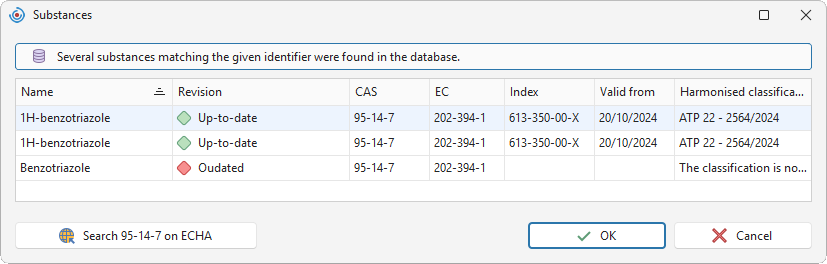
The latest version of the substance has a green indicator in the Revision column and the note “Current”. Substances for which a change in harmonised classification is approaching are marked in orange (“Expiring”), while classifications that are no longer valid are marked in red (“Old”).
- Select the preferred substance variant by double-clicking it or select it and click OK.
- The basic information about the substance is displayed.
- Clicking the Open substance button in the bottom-right part of the window opens the substance editing tab.
Editing harmonised substances is limited – these substances have the regulation that you must follow specified in the Harmonised classification field. Their classification is determined by legislation and is binding within the EU. The permitted modifications to harmonised substances can be found in Table 1.
If you do not want to use any of the substances in the database, you can continue searching on ECHA – in the bottom-left part of the window, click Search on ECHA. The list of available variants will be displayed again after clicking the more results button.
Table 1 - Editing a substance with harmonised classification
| Action | Can I? | What this means in practice |
|---|---|---|
| Remove an H-statement or EUH-statement | NO | A hazard that is part of the harmonised classification cannot be removed. |
| Make the category/class less stringent | NO | For example, Acute Tox. 3 cannot be changed to Acute Tox. 4. |
| Change the specific concentration limit (SCL) | NO | An established SCL cannot be deleted or changed. |
| Change or add an ATE to the specific limit | NO | ATE values are specified in the harmonised classification. Anything outside the harmonised classification is entered in the Toxicity section. |
| Change or add an M-factor | NO | M-factors are specified in the harmonised classification. |
| Add additional H-statements or EUH-statements | YES | Additional statements can be added based on data from the supplier. |
| Make the category/class more stringent | Only if the H-statement has an asterisk (*) | For example, Acute Tox. 4 can be changed to Acute Tox. 3. |
| Add toxicity and ecotoxicity data | YES | Data can be added based on information from the supplier. |
| Add physical or chemical properties | YES | Data can be added based on information from the supplier. |
The substance is not found in the software database
If the software does not find the substance in the database, it will display results from the ECHA database. Which substances are displayed and what information they contain always depends on the records available in ECHA.
Three situations may occur:
a) The software displays one substance with one classification
Based on your search, there is only one matching record on ECHA. Add the substance to the database using the Create substance button. Then continue according to the chapter Editing and saving a substance from ECHA.
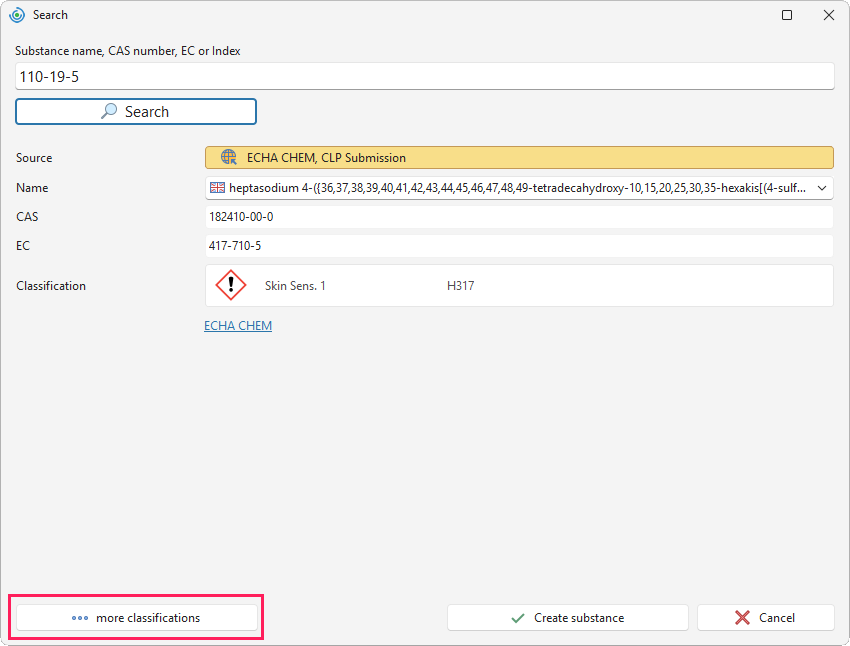
b) The software displays one substance with multiple classifications
After searching, multiple classifications may be displayed for a single substance. The software automatically displays the classification with the highest notification percentage. You can change the selection by clicking the more classifications button. Select the one that suits your needs and continue by clicking the Create substance button. Then continue according to the chapter Editing and saving a substance from ECHA.
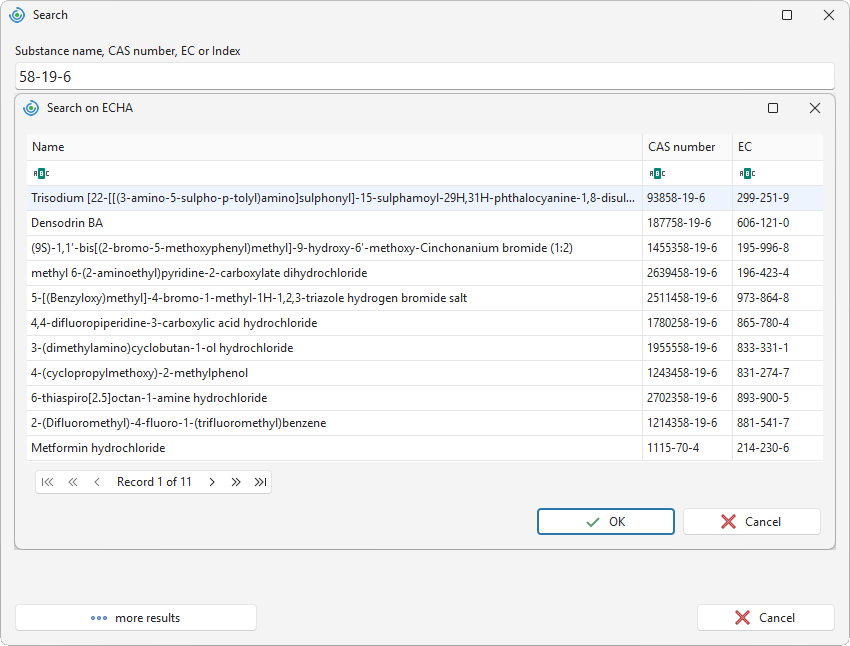
c) The software cannot determine exactly which substance it is
Sometimes the system displays multiple records because the identifier you are searching for does not exactly match the data on ECHA. Select the substance that most closely matches your information. Then continue according to the chapter Editing and saving a substance from ECHA.
Editing and saving a substance from ECHA
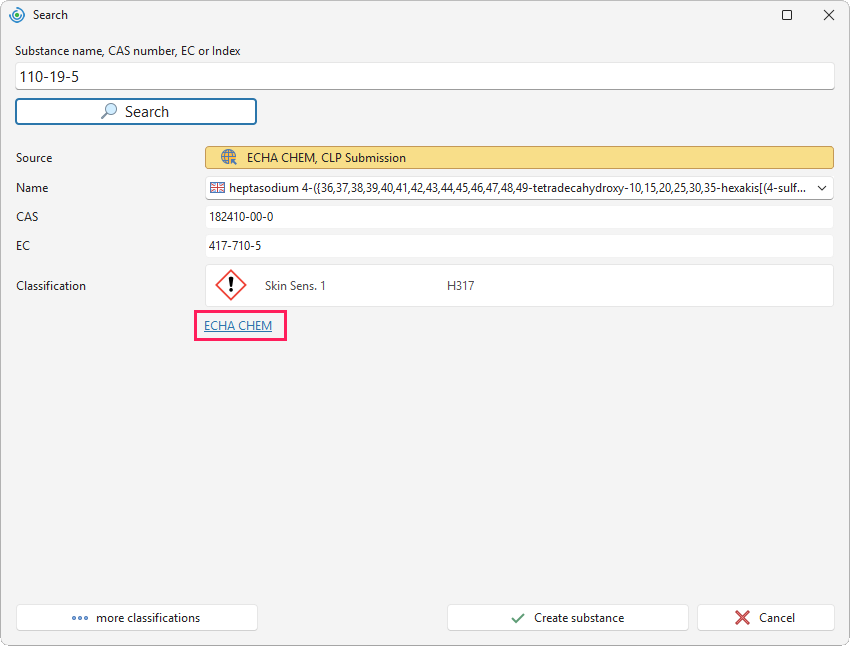
For substances with ECHA CHEM as the source, you will find a link to detailed information about the substance below the Classification field. Click the link to open the substance details directly on the ECHA website.
After selecting the substance, proceed as follows:
-
Click the Create substance button in the bottom-right part of the window to import the substance into the user database.
-
A new tab for editing the substance will open.
-
The Source field is automatically filled in with “ECHA CHEM”.
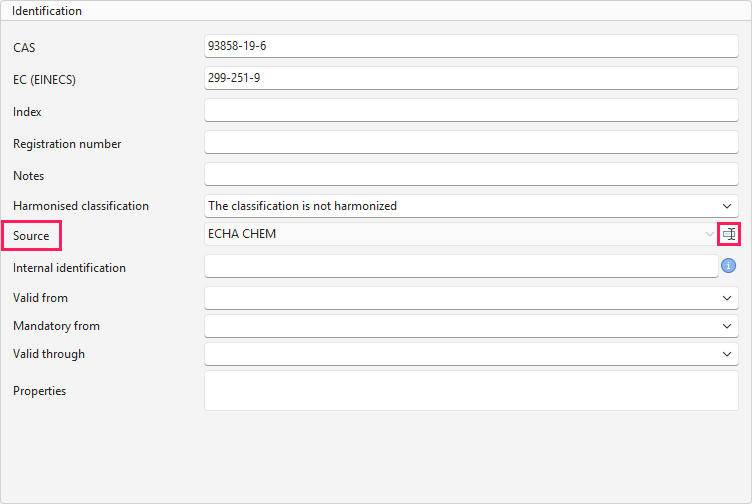
We recommend changing the Source to make it easier to navigate the database, for example, to the substance supplier. To change the source, click the icon at the end of the field.
-
Check the substance data and make any necessary changes.
-
Some imported substances may only have an English name. To add a name in another language, click the Add button in the Substance names section.
-
Save the substance to the database by clicking Save or Save and close.