 Sign in Next

 Български
 Čeština
 Dansk
Dansk
 Deutsch
 Eesti
Eesti
 Ελληνικά
 Español
 Français
 Hrvatski
 Italiano
 Latviešu
 Lietuvių
 Magyar
 Nederlands
 Norsk
Norsk
 Polski
 Português
 Română
 Slovenčina
 Slovenščina
 Српски (Ћирилица)
 Suomi
Suomi
 Svenska
 Türkçe
 Русский
 Українська
Translation of a safety data sheet
In this chapter you will learn how to translate a created safety data sheet into another language.
Procedure
-
Go to the Safety data sheets tab.
-
In the overview of safety data sheets, click the SDS you want to translate.
To translate multiple BLs at once, hold the Ctrl key and use the mouse to select all BLs you want to translate.
-
Click the Translate button in the toolbar.

The translation can be performed not only from the Safety data sheets tab but also from an open SDS.
-
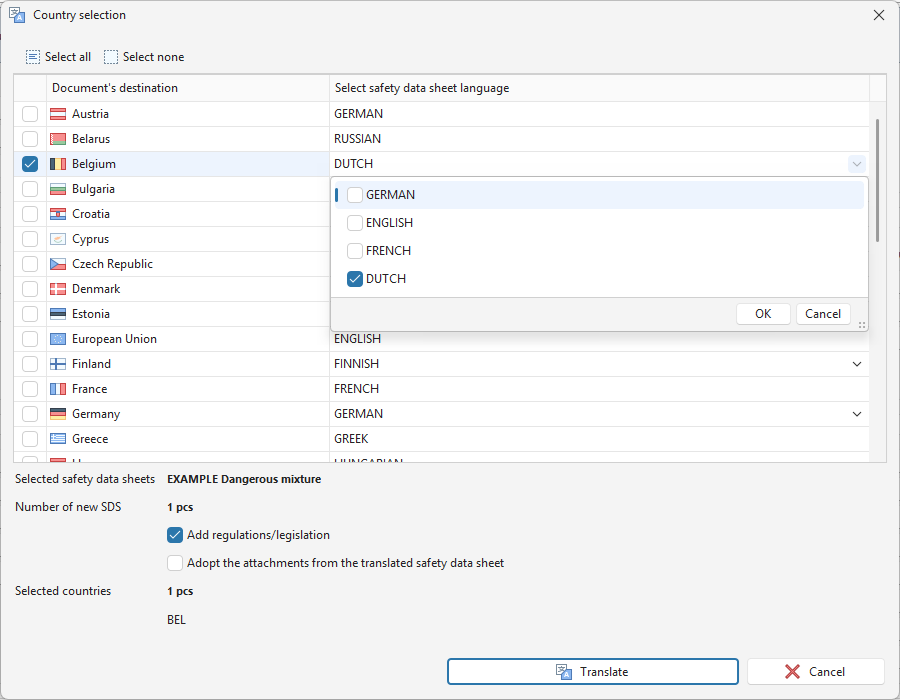
The Country selection window opens.
-
Select one or more countries for which the safety data sheet will be translated.
For some countries, multiple translation languages can be selected:
- Click the language field in the right column.
- A list of available languages for the given country will appear.
- Select the required languages.
- Click the OK button.
-
If you want to take over attachments from the original SDS, check the option “Adopt the attachments from the translated safety data sheet”.
Tip! We recommend keeping the Add regulations/legislation option checked. This option automatically adds national legislative requirements for the selected country.
-
Click the Translate button.
-
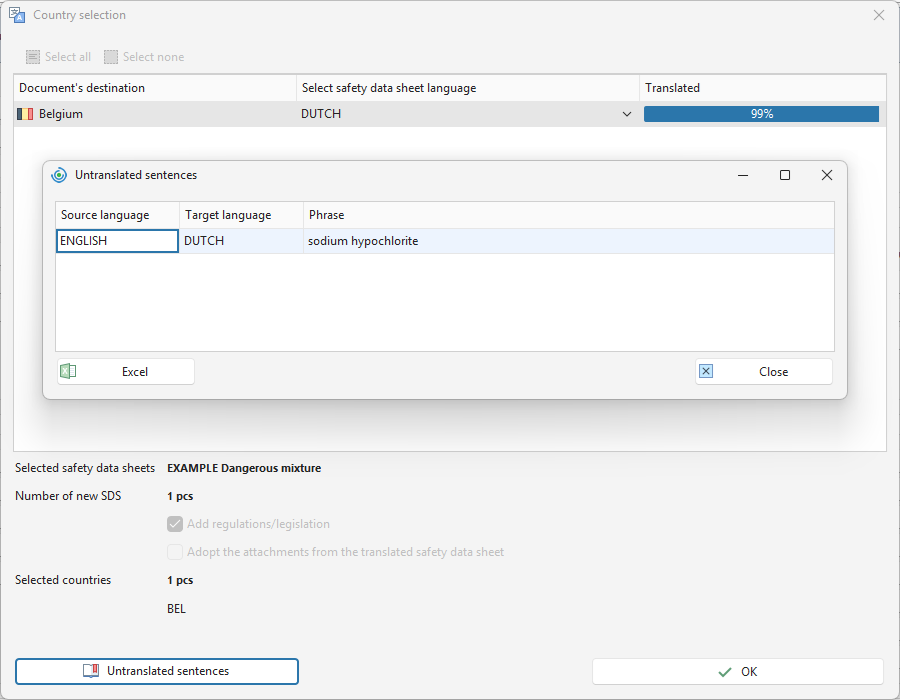
A table of selected countries and languages into which the SDS will be translated will appear.
-
The Translated column shows what percentage of the SDS content has been translated.
- Click the Untranslated sentences button to view untranslated parts.
- The Excel button exports untranslated sentences to MS Excel.
- Click the Close button to end the preview.
-
Click the OK button to complete the translation.
-
The translated SDS will appear in the Safety data sheets tab.
-
Open it by double-clicking.
-
Untranslated sentences are underlined in blue in the SDS. Sections containing untranslated sentences are also underlined in blue in the navigator.
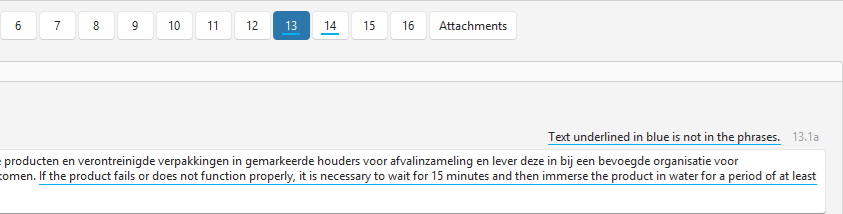
Attention! Some parts of the SDS are not underlined – for example the trade name and parameters in section 9 that you enter as text.
-
After manually completing all translations, click Save or Save and close.